
Connect your AI assistant to Holvi: 7 questions worth asking
Not sure what to ask your AI assistant? Here are seven practical questions to try with your Holvi account.
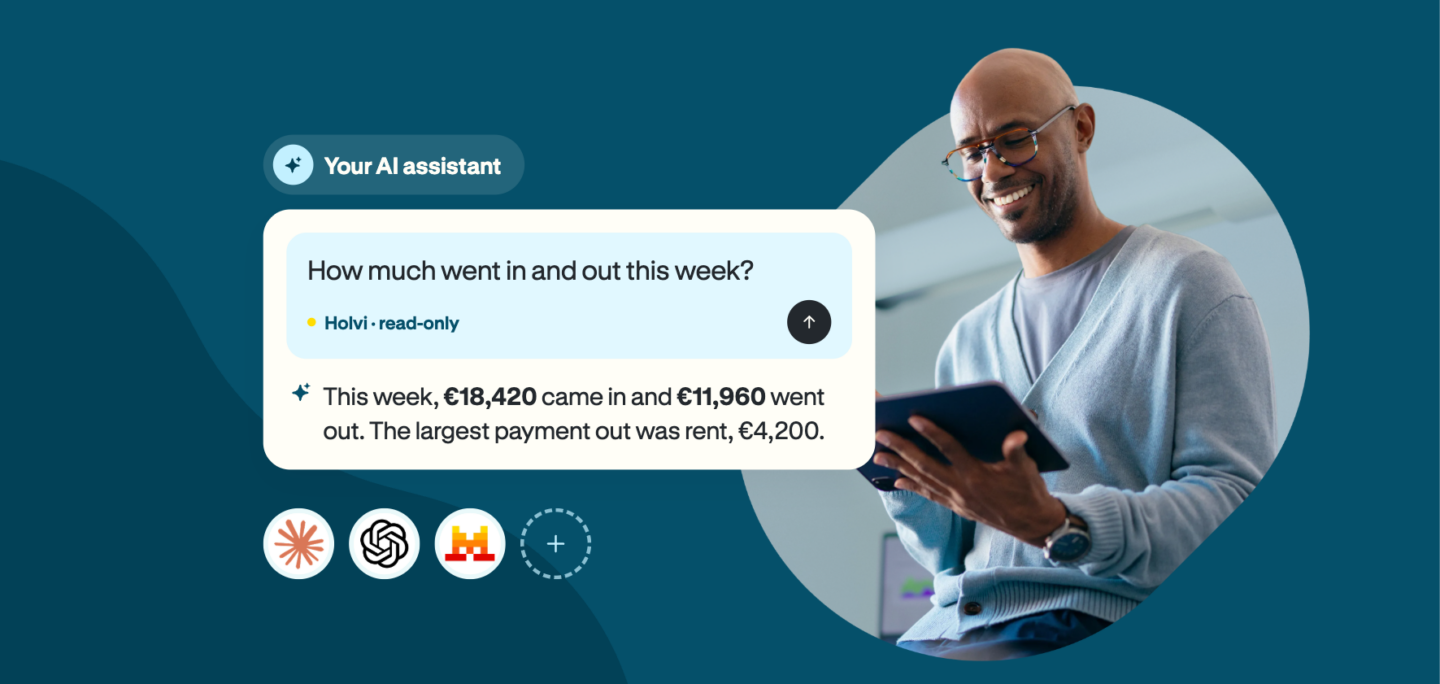
Many businesses export a bank statement or CSV file, paste it into an AI assistant like ChatGPT or Claude, and ask about their numbers. Now you can connect your assistant directly to Holvi. You get answers based on your latest account data without opening Holvi separately. You approve access in Holvi and can disconnect it at any time.
Not sure what to ask your AI assistant? Here are seven practical questions to try with your Holvi account.
How to connect your AI assistant to Holvi
You approve the connection in both Holvi and your AI assistant. You choose which data to share and can disconnect the assistant at any time.
- Open the Holvi app and go to Connections → AI assistants.
- Open the connection in your AI assistant.
- Approve access on Holvi’s consent screen and choose which data your assistant can access.
- You’re ready to start asking questions.
The exact steps vary by AI assistant, and some assistants require a paid plan. For up-to-date instructions, see here.
7 questions about your business finances – save the prompts
Here are seven practical questions to help you check payments, track spending and keep an eye on your business finances. Copy the prompts and give them a try.
The answers below are based on example data. Your assistant’s answers will reflect your own account data, so they may look different.
1. Has a customer paid yet?
Need to check whether a customer has paid? Simply ask using the customer’s name, and the assistant can look up the payment in your Holvi account.
Prompt to copy:
Has [customer] paid us yet?
Example answer (Example data):
Yes. [Customer] paid €1,240.00 on 12 October. The payment reference was “2043897654298”.
Follow-up prompt:
List the customers we haven’t received an expected payment from this month
2. Know your cash balance
Before making a big purchase or paying salaries, it’s worth checking how much money you have available. If you have several Holvi accounts, the assistant can add up their balances and give you the total.
Prompt to copy:
If your assistant finds unpaid invoices, you can send payment reminders in Holvi.
What’s our total balance across our Holvi accounts?
Example answer (Example data):
Your total balance is €18,430. This week you had €4,200 coming in and €2,950 going out, a net change of +€1,250.
Follow-up prompt:
What was our biggest single expense this week?
If spending has been higher than usual, you can quickly trace the reasons why.
3. Keep track of recurring costs
Software subscriptions, office rent and other recurring payments can add up over time. Ask the assistant to identify these payments in your transactions and see how much they cost over time.
Prompt to copy:
List our recurring costs from the last three months in a table: payee, amount and payment date.
Example answer (Example data):
| Payee | Amount | Typical payment date |
| Software service A | €29.00 | 3rd of the month |
| Cloud service B | €74.50 | 15th of the month |
| Coworking space C | €320.00 | 1st of the month |
Follow-up prompt:
Which of these costs have gone up over the last six months?
What was our biggest single expense this week?
You can also ask for specific payments in a table to see how much you’ve paid for a service over a set period.
4. Compare your monthly spending
Comparing your monthly spending helps you spot changes and unexpected costs. You may also spot duplicate charges.
Prompt to copy:
How does this month’s spending compare to last month?
Example answer (Example data):
Spending is €11,800, compared with €9,600 last month. The biggest increase came from marketing costs (+€1,400).
Follow-up prompt:
Is the increase from a one-off payment or a recurring cost?
An AI assistant can help you investigate unusual increases in spending without checking every transaction yourself.
5. Know your key suppliers and subcontractors
Knowing which suppliers you spend the most can help when reviewing contracts or negotiating prices. You can also check when you last paid a particular supplier.
Prompt to copy:
Who did we pay the most this quarter, and how much?
Example answer (Example data):
You paid Supplier Ltd the most (€6,800 across 4 payments). The latest payment was on 28 September, for €1,700.
Follow-up prompt:
Show our top five suppliers as a percentage of total spending.
This information can help you decide when to review supplier contracts or look for better deals.
6. Prepare a monthly review
Preparing figures for your co-founder, board or accountant doesn’t have to mean going through transactions manually. Ask the assistant to summarise your income and spending, then check the figures before sharing them.
Prompt to copy:
Summarise last month’s money in and out for my co-founder. Also tell me our average monthly spending over the last three months.
Example answer (Example data):
Last month you had €14,300 in income and €11,800 in spending. Your average monthly spending over the last three months is €10,900.
Follow-up prompt:
Turn this into a short message I can send by email.
You can also ask the assistant to turn the figures into a short email ready to send.
7. Find a specific payment
Can’t remember exactly when a payment was made? Give the assistant an approximate amount and date, and it can search your transactions for a match. You can also ask it to flag possible duplicate payments.
Prompt to copy:
Find the payment of around €240 from March. Are there any payments that look like duplicates?
Example answer (Example data):
I found one match: €238.60 to Service X on 14 March. Two payments of the same amount to the same payee on 2 and 3 April are also worth checking.
Follow-up prompt:
Show all payments to the same payee over the last three months.
If you find a duplicate charge, you can contact the supplier and request a refund.
Tips for better answers from your AI assistant
A few details can make your questions more useful. Here are three things to try:
- Name the time period. “This quarter” or “the last 30 days” works better than “recently”.
- Ask for a table when you want to compare.
- Ask for a follow-up instead of starting over. Your assistant remembers what you just discussed.
These tips work with most AI assistants. An assistant can also make mistakes, so check the figures in Holvi before making important decisions based on them.
You decide what your AI assistant sees
You control which AI assistants can access your Holvi data and what information they can see. More information can be found on our product page.
Once data has reached the assistant, the assistant’s own terms apply.
Try the AI assistant connection in Holvi today
Connecting an AI assistant to Holvi is included in all plans at no extra cost. Set up the connection and start asking questions about your business finances using your Holvi account data.
Not a Holvi customer yet? Open a business account online with no opening fee.